


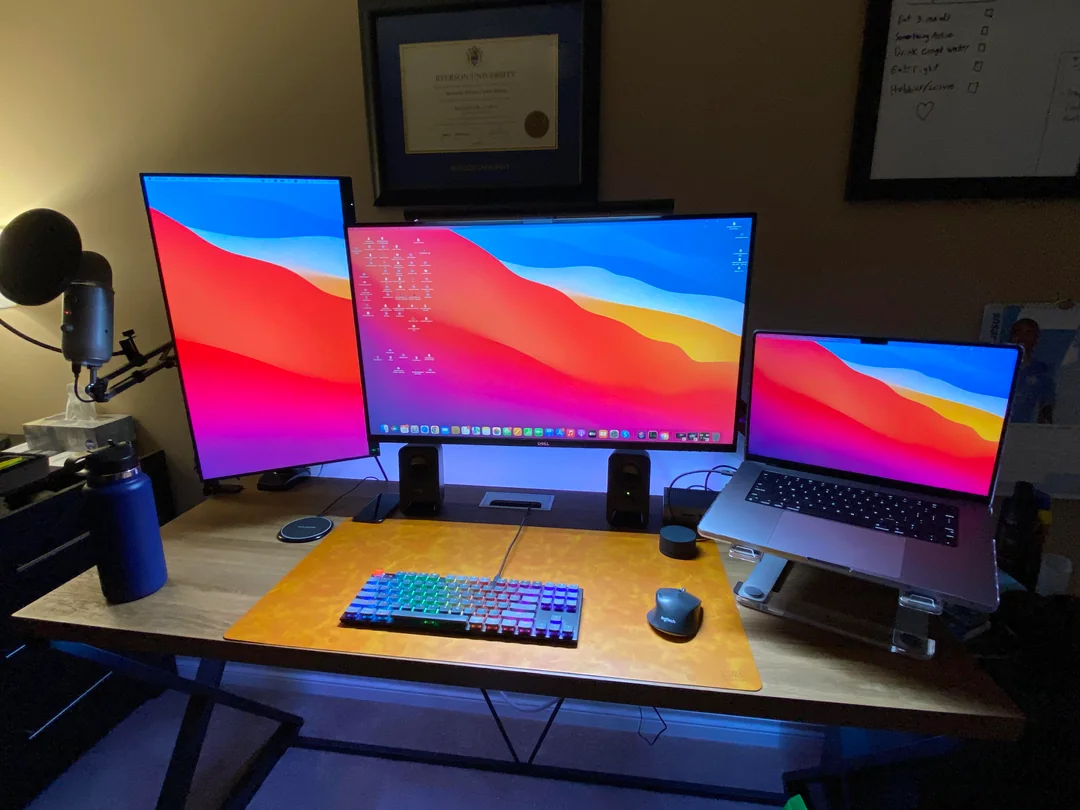
Does using a monitor with a laptop decrease battery life? Laptops are prized for their portability, but sometimes their built-in screens can feel cramped, especially when multitasking. That’s where an external monitor comes in, offering a larger display to enhance productivity. However, while this setup can improve your workspace, it often comes with an unexpected consequence: increased battery drain.
So, does connecting a monitor to your laptop really cause it to lose charge faster? In this article, we’ll explore how external monitors affect your laptop’s battery life and what you can do to mitigate the impact.
The Impact of External Monitors on Battery Life
Increased Power Consumption
When you connect an external monitor to your laptop, it’s like adding another workload to an already busy machine. The laptop’s graphics processor (whether integrated or dedicated) must now handle two displays, which consumes more power. Integrated graphics are designed for light tasks, so adding an external monitor pushes them to work harder, draining your battery more quickly. Laptops with dedicated graphics cards, which provide better performance but use more energy, may switch to the higher-powered card when an external monitor is connected, further increasing power consumption.
Potential Power Savings
Interestingly, there is a way to reduce the strain on your battery. By turning off the laptop’s internal screen (known as “clamshell mode”), you can save a significant amount of energy. This is because the built-in screen typically uses a lot of power. However, clamshell mode may not always be possible, as some laptops need to remain open to function properly or require special settings to work correctly when closed. Additionally, if you rely on both displays for tasks like presentations or multitasking, clamshell mode won’t be an option.
Another potential saving comes from the monitor itself. If your external monitor is energy-efficient (look for features like LED backlighting and auto-brightness adjustment), it can reduce power draw.
Factors Influencing Battery Drain

The extent to which an external monitor affects your laptop’s battery life depends on several factors:
Type of External Monitor
- Resolution: Higher-resolution monitors, such as 4K displays, demand more graphical processing power, which increases battery drain. A 1080p (Full HD) monitor offers a better balance between screen size and energy efficiency.
- Additional Features: Monitors with built-in speakers, USB hubs, or other extra functions will draw more power. If these features aren’t essential for your work, opt for a simpler model to preserve battery life.
How Much VRAM Does a Second Monitor Use?
Laptop Settings
- Brightness: Just like your laptop screen, the external monitor’s brightness plays a huge role in power consumption. Reducing brightness on both screens is an easy way to extend battery life.
- Refresh Rate: Higher refresh rates (like 144Hz) provide smoother visuals, which are great for gaming, but they also use more energy. For general use, sticking with a 60Hz refresh rate will help conserve power.
Laptop Workload

Heavy tasks such as video editing, gaming, or running resource-intensive software will naturally drain your battery faster, regardless of whether an external monitor is in use. Closing unnecessary applications or reducing their settings can help optimize battery life.
Tips to Maximize Battery Life with an External Monitor
To get the most out of your laptop’s battery while using an external monitor, try the following tips:
- Adjust Display Settings: Lower the brightness on both the laptop and external monitor. If your monitor allows it, reduce the refresh rate to 60Hz for standard tasks.
- Use Clamshell Mode (if applicable): Turning off the laptop’s internal screen and using only the external monitor can significantly improve battery life. Check your laptop’s user manual or support site for instructions on enabling clamshell mode.
- Manage Power Settings: Most laptops come with built-in power management tools that allow you to fine-tune settings related to display power, sleep modes, and processor performance. Optimize these settings for better energy efficiency.
Final Thoughts
Using an external monitor generally increases your laptop’s power consumption, as it requires more processing from the graphics card and other systems. The degree to which this impacts battery life depends on factors like monitor resolution, added features, and your laptop’s settings and workload. By adjusting display settings, using clamshell mode, and managing your laptop’s power settings, you can minimize the effect and extend battery life while still enjoying the benefits of a larger screen. If you need even more unplugged usage, a portable power bank with the right capacity can help keep you going through the day.